My blog is all about preventive wellness, and that is my passion too. Still, I am writing this off-track post so WordPress beginners like me can see what they need to learn before and after launching a site.
I have been on Blogger since 2018, and I enjoy writing about wellness. As Blogger is a managed platform, I did not need to configure much. I can say I learned it in the first week itself. My blog is running fine; however, there are some limitations on designs, added functionalities, and starter templates.
I was checking out other options where I can have a little more choice and liberty to express my art. Where I can picture my words pleasantly, so my viewers do not get bored by overwhelming wellness information.
After exploring possibilities & viewing a few tutorials, I decided to go with WordPress. But here the problem was—I did not have any knowledge of WordPress.
Destination Failure
👉 While searching for basic tutorials, I came across the difference between WordPress and managed WordPress—thank you, creator. I learned—just WordPress needs good technical knowledge. I had only one option left: to go with managed WordPress.
👉 I started my hunt for a reliable and affordable hosting service. As my site was in the idea stage, I did not want to spend too much on.
👉 After contacting a few providers, I decided to go with Hostinger. Hostinger has a managed host plan, which I understood was better for me as a newcomer. I explained my problem and what I was looking for to Hostinger’s AI help; it guided me to the best hosting plan per my need and knowledge level. The purchasing process was easy.
👉 I was like, wow, I found affordable hosting and managed WordPress—both checked my checklist!
I felt a relief, like the biggest task was off my shoulder!
I didn’t know it was too early to celebrate!
👉 A day later, I started with (this is an affiliated link) Hostinger with 20% off promotional offer, set up my site, and got the domain. I was so excited to learn WordPress and create a site I visualized.
👉 I watched more tutorials on WordPress dashboard’s Hostinger onboarding. I do not remember if I learned anything there -as soon as the tutorial is finished, I forget what I watched. I meant it is not easy to follow tutorials with live actions on site. Furthermore, I just learned how to select a theme. I picked the one that fit my purpose (looked like it, from the template at least).
👉 I started to explore the WordPress dashboard on my own, as plans were paid, and I did not want to waste time. I decided to go and try all the widgets on the panel, from top to bottom—one by one.
👉 I was in my wonderland, exploring plugins and seeing how they work on my site. I will not lie; I really loved that learning curve (which lasted way longer than I thought—almost 6 months—to be specific, March to September) ☹
👉 I was following GA4 for my old blog; I did not care to take a look at or set a property for the new site. As I thought—this site is not ready yet. Let me finish it, and then I will set it up.
I was wrong—terribly wrong there.
What went Wrong
While exploring plugins, I set up Search Console for the new site and connected to GA4 (unknowingly, as I already had an account on GA4 for my blog). I thought it was for testing purposes, not knowing that site was live already.
At first, I was shocked to see my new site’s views and pleasantly surprised (with a good number of viewers)! That happiness did not last long, as I noticed all views were about 0 seconds of engagement, and most of them were of error ‘404’!

Here is what happened! When I was learning WordPress, my site was live. It was on Google already! Pages from all themes I changed in between were indexed, with standard theme text on it.
For example, I am not selling any physical product, and 14 types of tea were listed on my site—from the theme ‘herbal tea’ I used. In the same way, there were few other products on my site from another theme I used in between.
As soon as I change the theme, I used to delete all pages and posts from the new theme I am not using. Yes, pages and posts from Trash were being indexed within 3-4 days! And that’s where those ‘404 – page not found’ views were from.
For that reason, probably Google put my site on the back burner (I don’t blame it)—hence my new site (final launch) has not been indexed almost after a month. I submitted a sitemap on 12/30/25, and the status as of today, 01/25/26, is ‘Discovered – not indexed’ for new pages, posts, and categories.
From this mess, I did not lose time, money, and views only—I also lost the most important thing (for any content creatoris): credibility!
How did I resolve that mess?
👉 I took help from AI on my laptop (as my site was already live, I had no time); I followed this workaround AI suggested.
👉 Left my site on in the status it was, as it was already indexed and getting views.
👉 Went on my hosting provider dashboard and created a staging site (which is a copy of the current site).
👉 Added ‘do not index’ to staging site.
👉 Added a password to the staging site (as a secondary step -as Google may index the staging site with ‘do not index’ per AI)
👉 Played with all the themes and templates I liked, and finalized the theme.
👉 Removed default plugins from the theme I didn’t need (for site speed, fewer plugins are better—per AI).
👉 Added plugins one-by-one for the functionalities I wanted on my site and tested the site for them. If the first choice did not work with the theme (yes, it happens), went with another one.
👉 Added pages I had planned for the services I am providing & a few finalized posts I had drafts for (as my drafts were indexed unknowingly) posts I had drafts for.
👉 Optimized images I used (should be under 250 kb per AI) for the speed loading.
👉 Added meta descriptions and improved titles to be more relatable to the content.
👉 Tested the entire staging site for a few days & published the staging (replaced the live site with the updated staging site) on 12/30/25—almost 3 months later.
👉 Just like most of the tutorial videos online, AI also misled me on several tasks. I had to learn as I go.
For example, AI asked me to look for the ‘push staging to live’ option on the Hostinger dashboard under site information. It does not exist there anymore! Hostinger moved that functionality to the staging site itself, in right-click, Publish.
👉 That’s why I insist—pause, rewind & review to take notes of important functionalities when you watch videos.
If you are thinking of creating a site, of course you have your niche and knowledge of that niche. However, you may not have the technical knowledge required for site creation and management.
I do not wish any other creator to go through this problem. Hence, I put up this step-by-step checklist to help WordPress beginners.
No worries!
If it is done with proper planning, you can learn and create your own site in less time. All you need to understand is the use of ‘learn before you go’ for certain important tasks & ‘learn as you go’ for all other tasks.
Steps to follow for a seamless launch of your site—for beginners
Watch tutorials and blogs for these skills and take a note of all important points. Even if you think you know it now, just take a note.
Trust me – it is easy to get lost in those similar functionalities of different plugins.
Most importantly, watch ONLY those tutorials that have been updated in the past 3 months.
Technology changes very fast; half of the information on old tutorials may not be relevant to the current version of the application.
Before selecting a hosting provider (learn before you go)
👉 Shop around for hosting providers and managed hosting provider options (I would recommend managed hosting for beginner).
👉 Pick a domain (or two) that fits your niche and has a good ranking. Use free online tools. Do not register it yet—you may have a deal with your hosting provider.
👉 Prepare a few drafts of posts and pages for your site (in Word) out of site.
👉 Prepare a sketch of your site—draft how many pages for what purpose you will need.
👉 List added functionalities your site will need: login/contact forms, newsletters, polls, quizzes, social media share/follow buttons, digital products, online stores, etc.
👉 List 2-3 plugins for each of these functionalities (never know if any plugin messes up with the theme).
👉 On the hosting provider you are considering, learn how to:
- Buy the hosting package you are looking for (read the conditions in small font).
- Register a domain
- Create a site
- Put that site on ‘do not index’ mode
- Select features you need or are planning to use (again, read conditions)
So, if you learned all of the above and noted it down, you are ready to get started (not to launch).
Buy your hosting plan and register the domain
- Buy the plan you selected from the hosting provider.
- I used Hostinger for easier launch, see pricing here (this is a affiliated link): Hostinger Plans & Prices.
- Create your login and log in to the hosting provider’s dashboard.
- Go to ‘Create a site’ or similar.
- Add your domain name—if you already purchased it from a hosting provider.
- Or register your domain when site setup prompts you to—if you are registering a domain via a hosting provider.
- Put your site on ‘Do not index’ mode if your hosting provider has the option.
After creating a site at the hosting provider’s dashboard (learn as you go)
👉 Go to the managed application (WordPress) dashboard.
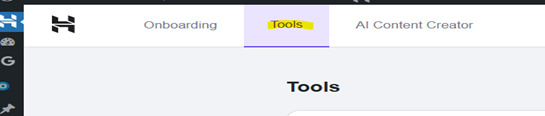
👉 Add the site on maintenance mode; that option is under H panel, Tools:

👉 Go through pages in your theme, delete the ones you do not need—if you are sure you will not need them at all—and permanently remove them from the trash.
👉 Remove or update any contact information or location from the theme.
👉 Disconnect/unselect any analytic plugins (GA4, Search Console, or MonsterInsights) that theme has.
👉 Go through themes and templates until you finalize one.
👉 Select the theme and test how it works on your site for both—look and functionality. Also consider the theme’s compatibility with plugins you are planning to use.
👉 Now add on pages first, including the blog page (if you are planning to)—to give your site a format.
👉 Add posts to your blog—if you have a blog.
👉 Verify all internal and external links’ status.
👉 Add and test all added functionalities, one by one.
👉 Take the site off maintenance mode.
👉 Reset any ‘Do not index’ used on the hosting provider dashboard.
👉 Clear all cache.
👉 Set up & connect GA4 via any plugin you like. I have watched a few videos advising to set up GA4 at the start to get Google to index your site at the earliest. I do not see any point in indexing a draft—a site that is not published or NOT ready to be published.
“People learn from their experience; wise people learn from someone else’s experience!”
See my site @brioveda.com.
(I used the OceanWP theme’s free version).
Please comment if this helps.